
Looking for how to use the rest of SmartCal (campaigns, users, routing rules, your website, bookings)? See the SmartCal User Guide.
Overview
SmartCal turns a demo request on your website into a booked meeting with the right salesperson. With the Zoom integration, SmartCal creates a new Zoom meeting for each demo it books with a salesperson who has connected Zoom, hosted in that salesperson's own Zoom account. The Zoom link is added to the calendar invitation the prospect receives.
How it fits together:
- Your calendar (Microsoft 365 or Google) still decides when the salesperson is free and sends the invitation.
- Zoom provides the meeting link. Each demo gets its own meeting, with its own link.
- SmartCal books the time, creates the Zoom meeting, and keeps them in step. If the prospect reschedules, the Zoom meeting moves; if they cancel, it's deleted.
Every demo always gets a meeting link. When the workspace uses Zoom, a salesperson who hasn't connected Zoom yet (or whose Zoom needs reconnecting) is still booked as normal. Their demos get the calendar's own meeting link (Microsoft Teams or Google Meet) instead of a Zoom link, until they connect.
The workspace setting chooses what new demos get: Zoom or the calendar's own link. Demos already booked keep the link they were booked with.
Each salesperson connects their own Zoom account. There's nothing for a Zoom administrator to install for the whole company. In SmartCal, the people you book meetings for are called Users.
What SmartCal can access in Zoom
When a user connects Zoom, they approve SmartCal to:
| Permission | What SmartCal uses it for |
|---|---|
Create meetings (meeting:write:meeting) |
Create a Zoom meeting for each demo booked with that user. |
Update meetings (meeting:update:meeting) |
Move that meeting when the prospect reschedules. |
Delete meetings (meeting:delete:meeting) |
Remove that meeting when the demo is cancelled. |
View your user information (user:read:user) |
Confirm which Zoom account was connected, and that it can host meetings. |
SmartCal only changes the meetings it created itself. It never reads, changes or deletes your other Zoom meetings, recordings, chats or contacts.
What SmartCal stores: the connected Zoom account's email address and user ID, plus the access tokens Zoom issues (stored encrypted). For each booking, it stores the Zoom meeting ID and join link.
Meeting settings SmartCal uses: a scheduled meeting with the waiting room on and join before host off. Prospects don't need a Zoom account. They can join from their browser as a guest, and the host admits them from the waiting room.
Adding SmartCal to Zoom
Prerequisites
- A licensed (paid) Zoom account for each salesperson. On a free Zoom account, meetings end after 40 minutes.
- The salesperson's Zoom email must match their email in SmartCal. SmartCal rejects a Zoom account with a different email, so meetings are always hosted by the right person.
- The salesperson's calendar is already connected. See Users in the SmartCal User Guide.
- A SmartCal Admin to turn Zoom on for the workspace.
- If your company's Zoom account requires approval for Marketplace apps, your Zoom administrator may need to pre-approve SmartCal. See Troubleshooting.
Step 1: Choose Zoom as your video meeting provider
Done once, by a SmartCal Admin.
- Sign in to SmartCal.
- Go to Integrations.
- Under Video meeting → New demos get, select Zoom.
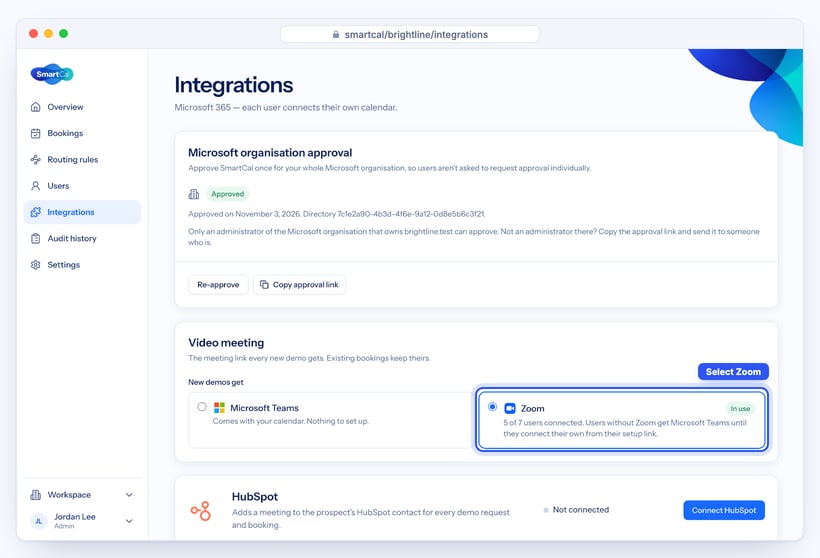
From now on, new demos get a Zoom meeting when the salesperson has connected Zoom. Demos booked before the change keep the link they already had.
Note: If you don't see the Video meeting card, Zoom hasn't been made available for your workspace yet. Contact SmartCal support.
Step 2: Ask each salesperson to connect Zoom
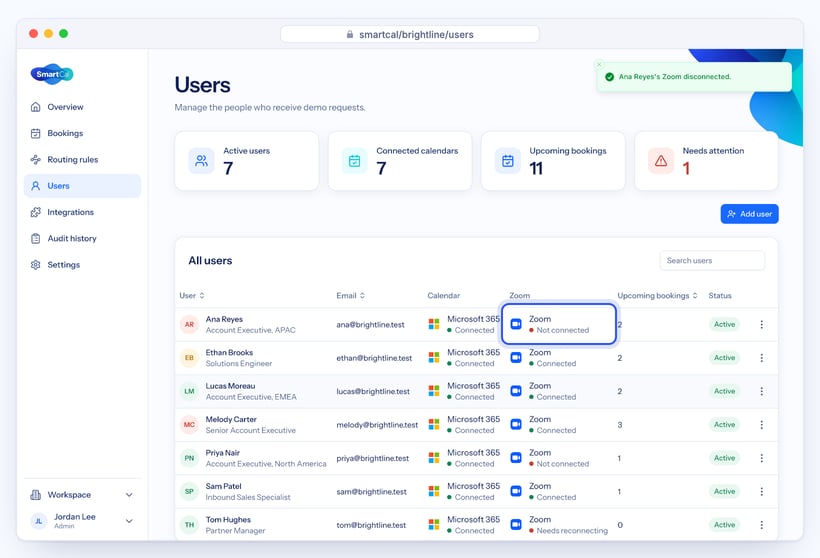
Go to Users. The Zoom column shows who has connected their Zoom account.
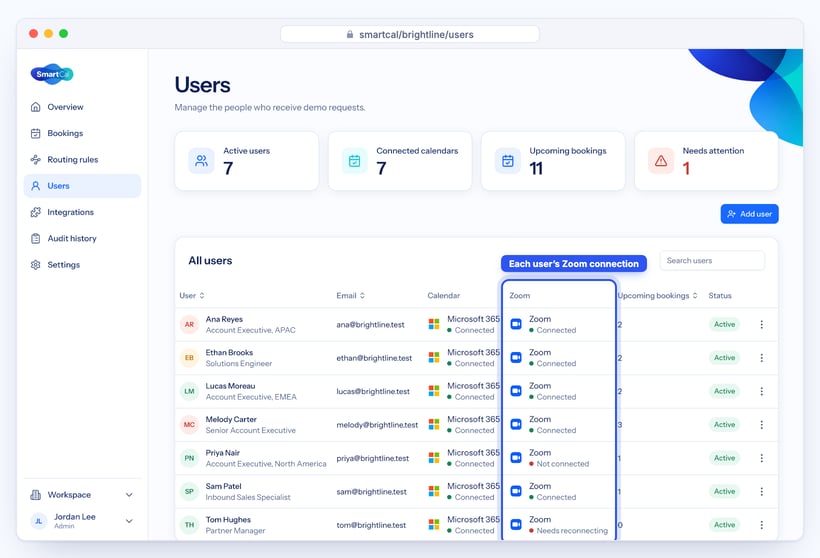
For each user who shows Not connected:
- Click the ⋯ menu at the end of their row.
- Choose Send setup email to email them their setup link, or Copy setup link to send it yourself.
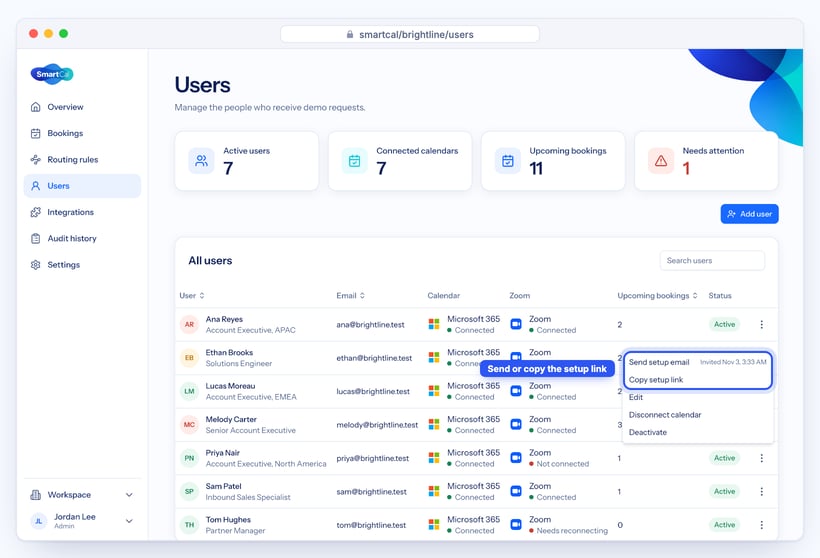
A setup link works for 7 days.
Step 3: The salesperson connects their Zoom account
Done by each salesperson, about one minute.
-
Open the setup link from SmartCal.
-
Next to Zoom, click Connect Zoom.
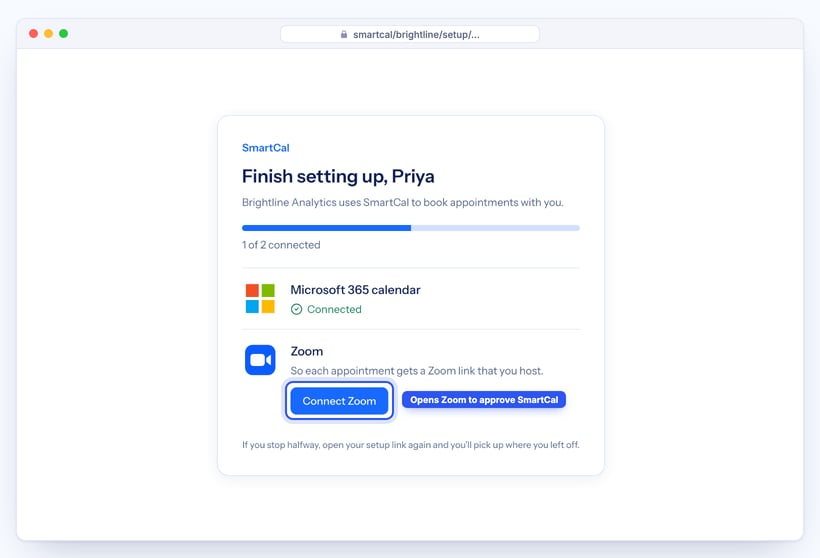
The user opens their setup link and clicks Connect Zoom. -
Sign in to Zoom with the same email address SmartCal has for you, if you aren't already signed in.
-
Zoom shows what SmartCal is asking for (see What SmartCal can access in Zoom). Review it, and click Allow.
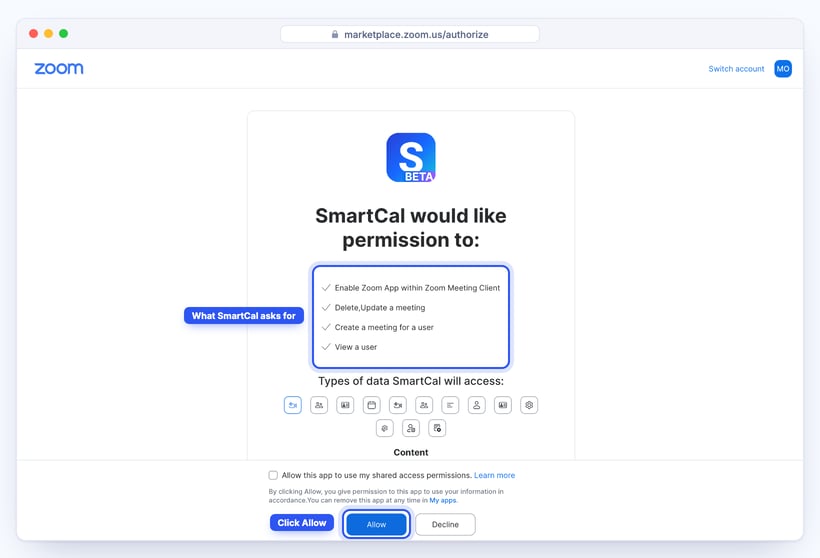
Zoom asks you to allow SmartCal. Review the permissions and click Allow. -
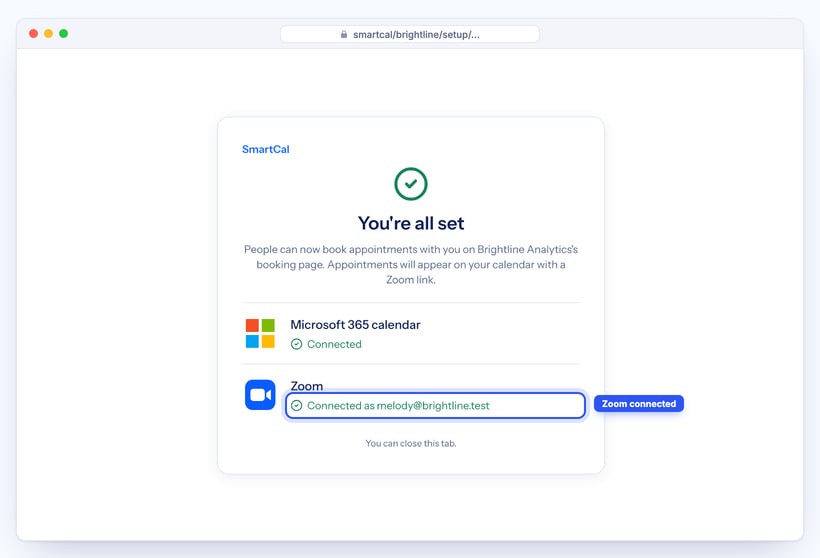
You're returned to SmartCal, and the setup page shows Zoom: Connected as your email.
Step 4: Check everyone is ready
Back on Users, the salesperson's Zoom now shows Connected.
While the workspace uses Zoom, the Setup checklist has a step, Every user can host in Zoom. It lists anyone who still needs to connect, as Not ready in Zoom: followed by their names.
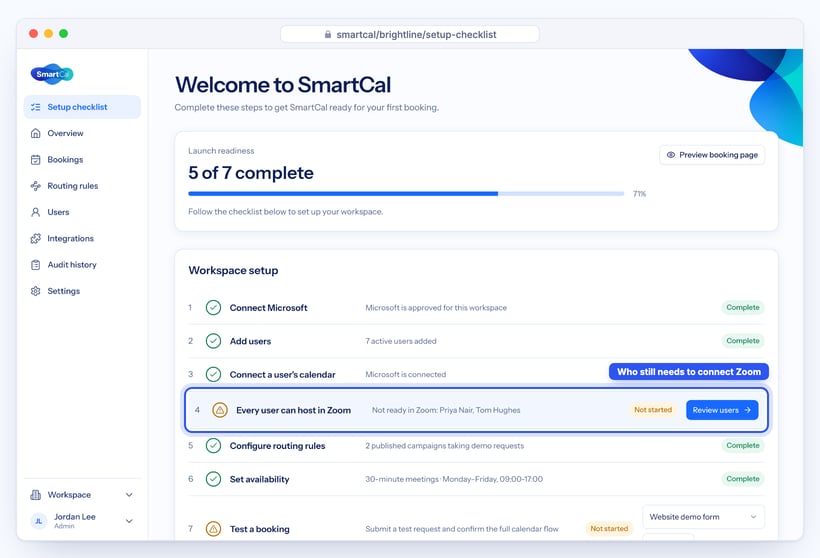
- Before SmartCal goes live, this step is required, like every other step on the checklist. Activate SmartCal stays unavailable until every active user has connected Zoom.
- After SmartCal is live, the step stays on the checklist. If someone hasn't connected Zoom (for example, a user you added later), Overview and the Setup checklist show "SmartCal is live, but some users aren't on Zoom yet". Bookings carry on as normal: their demos use the calendar's own link until they connect.
Important: A salesperson who hasn't connected Zoom still gets demos. SmartCal books them with the calendar's own meeting link (Microsoft Teams or Google Meet) instead of a Zoom link, until they connect Zoom.
Using SmartCal with Zoom
There's nothing to do day to day. Once Zoom is connected:
- A prospect fills in your demo form and picks a time in SmartCal.
- SmartCal creates a Zoom meeting in the assigned salesperson's Zoom account.
- The meeting is added to the salesperson's calendar, with the Zoom link, and the invitation goes to the prospect.
Where to find the Zoom link:
- In the calendar invitation (the prospect's and the salesperson's).
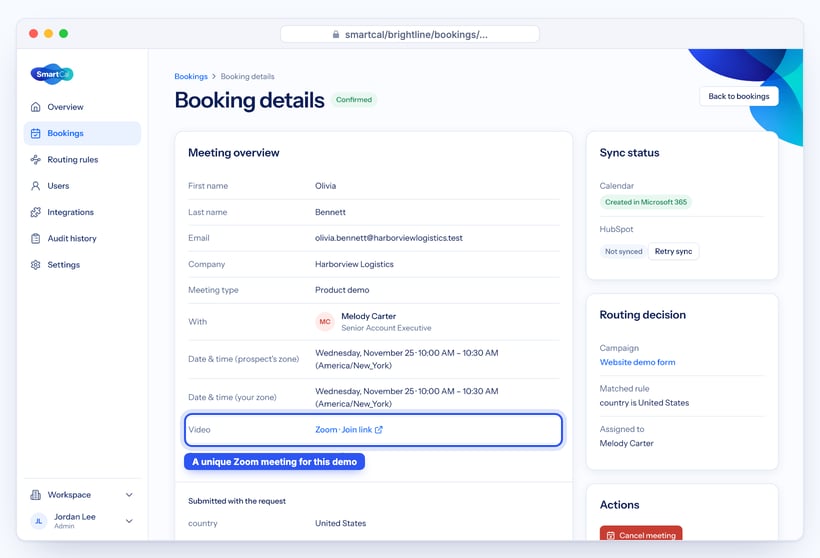
- In SmartCal, under Bookings → Booking details → Video.
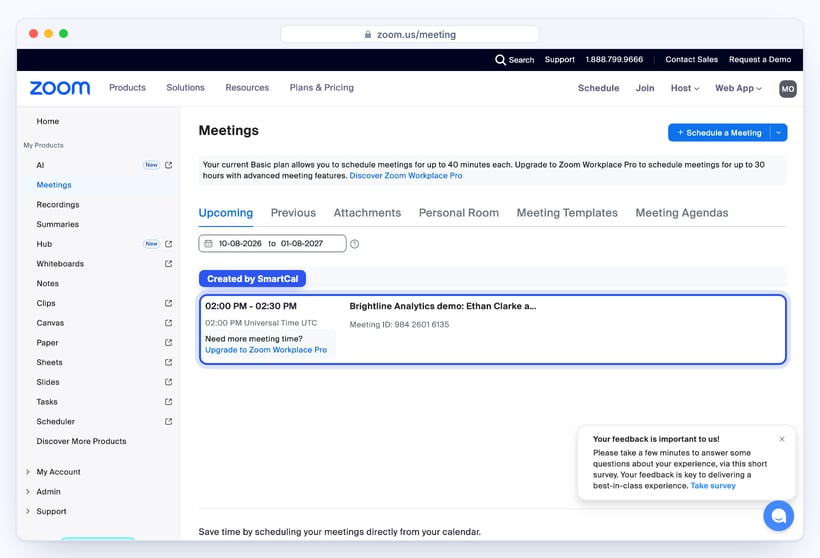
- In Zoom: sign in at zoom.us and open Meetings → Upcoming. The demo appears there with its time and title, hosted by the salesperson.
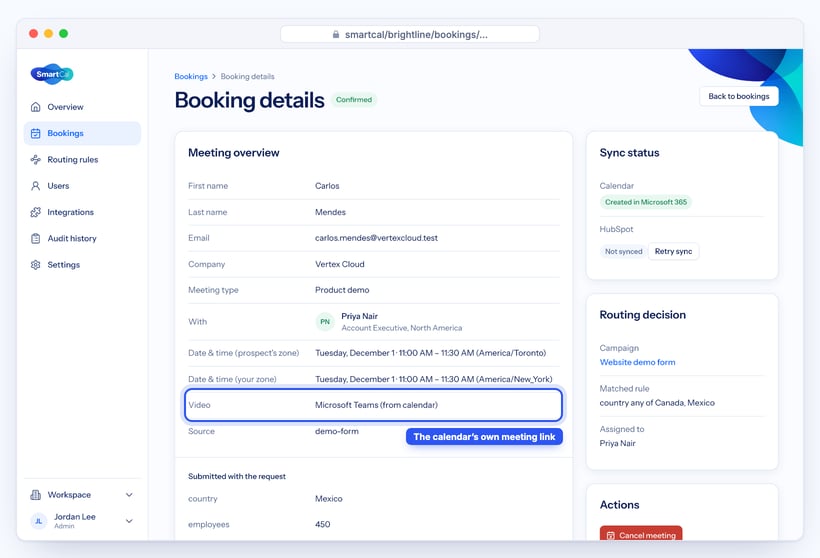
A demo booked with a salesperson who hasn't connected Zoom shows the calendar's own link (for example, Microsoft Teams) under Video instead.
When things change:
| What happens | What SmartCal does in Zoom |
|---|---|
| The prospect reschedules | Moves the same Zoom meeting to the new time. The link stays the same. |
| The prospect or an Admin cancels | Deletes the Zoom meeting. |
| The meeting moves to another salesperson (for example, the original one is deleted) | Creates a new Zoom meeting in the new salesperson's account, and deletes the old one. If the new salesperson can't host it in Zoom (for example, they haven't connected Zoom), SmartCal doesn't move it. It's left for an Admin to reassign, the same as a meeting whose new owner is busy. |
Zoom connection status (in Users → Zoom):
| Status | Meaning | What to do |
|---|---|---|
| Connected | SmartCal creates a Zoom meeting for this user's demos. | Nothing. |
| Not connected | The user hasn't connected Zoom, or it was disconnected. Their demos are still booked, with the calendar's own meeting link. | Send them their setup link. |
| Needs reconnecting | Zoom no longer accepts the connection, for example because SmartCal was removed in Zoom. Their demos are still booked, with the calendar's own meeting link. | Send them their setup link to connect again. |
SmartCal checks every user's Zoom connection once a day, and also each time it books.
Removing SmartCal
Disconnecting Zoom in SmartCal and removing SmartCal from Zoom are separate actions. Either one stops SmartCal using that Zoom account.
Disconnect Zoom in SmartCal
Done by a SmartCal Admin, for one user.
- Go to Users.
- Click the ⋯ menu on the user's row.
- Choose Disconnect Zoom. This takes effect straight away; there's no confirmation step.
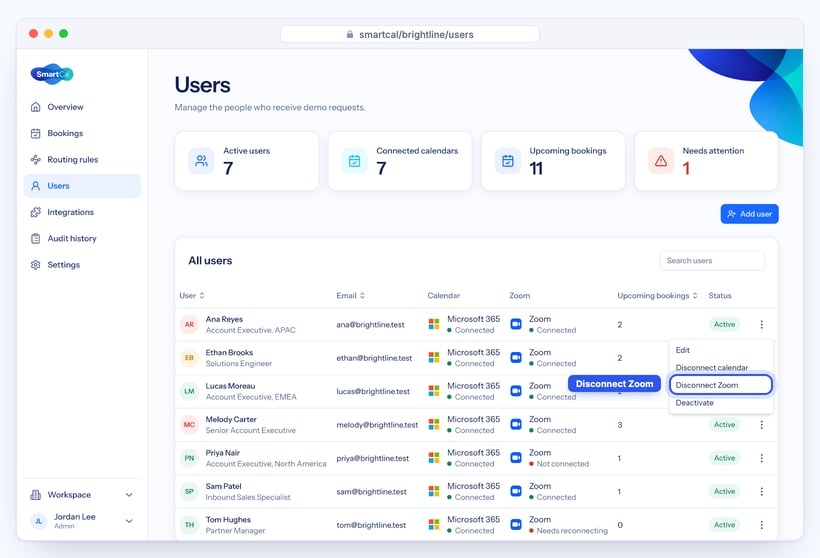
SmartCal asks Zoom to revoke its access and deletes the stored tokens. The user's Zoom then shows Not connected.
Remove SmartCal from your Zoom account
Done by the salesperson, in Zoom.
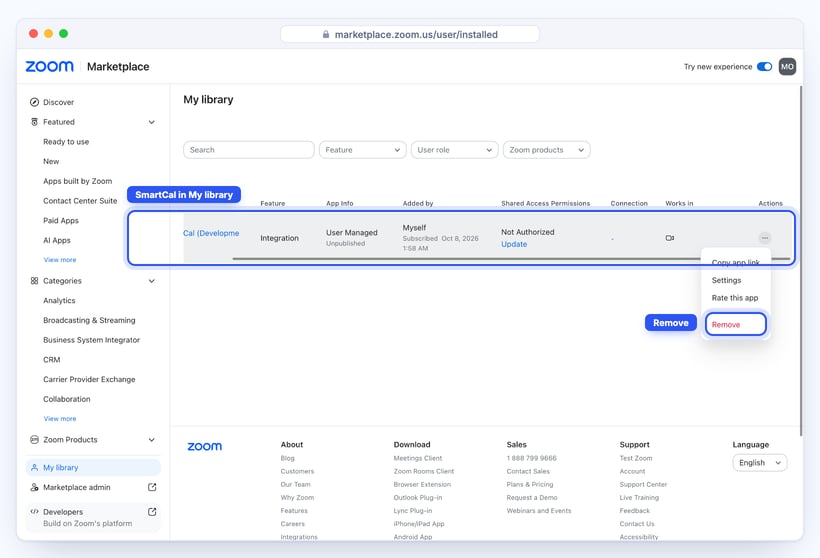
- Sign in to the Zoom App Marketplace.
- In the left-hand menu, click My library.
- Find SmartCal in the list.
- Open its ⋯ (More) menu and choose Remove.
- Confirm.
If SmartCal was added for your whole Zoom account by an administrator, the administrator removes it instead, from Marketplace admin (in the same left-hand menu).
What happens when SmartCal is removed
- New demos: SmartCal stops creating Zoom meetings for that salesperson. In SmartCal, their Zoom shows Needs reconnecting (at the next daily check, or the next time a meeting is booked or changed). Their new demos are still booked, with the calendar's own meeting link.
- Meetings already booked: stay in the salesperson's Zoom account and calendar, and their links keep working. Because SmartCal can no longer reach Zoom, it can't move or delete those meetings if the prospect later reschedules or cancels. Update them in Zoom yourself.
- SmartCal records: your booking history in SmartCal (dates, prospects, assigned salesperson, status) is kept. The Zoom tokens SmartCal held no longer work, and are deleted when you disconnect Zoom in SmartCal or connect again.
- Reconnecting: open the setup link and click Connect Zoom again at any time.
To stop using Zoom for the whole workspace, an Admin goes to Integrations → Video meeting and selects the calendar's own link (Microsoft Teams or Google Meet). New demos then use that link.
Data retention and deletion follow the SmartCal Privacy Policy.
Troubleshooting
"The Zoom account you signed in with doesn't match your email in SmartCal"
You signed in to Zoom with a different email than the one SmartCal has for you. Sign out of Zoom, open your setup link again, click Connect Zoom, and sign in with your work email. If your Zoom email really is different, ask your SmartCal Admin to update your email in Users, or contact SmartCal support.
A user shows "Not connected" or "Needs reconnecting"
Their demos are still booked, but with the calendar's own meeting link instead of Zoom. Send them their setup link (Users → ⋯ → Send setup email) and ask them to click Connect Zoom.
A demo got a Teams or Meet link instead of Zoom
The salesperson hadn't connected Zoom (or their Zoom needed reconnecting) when the demo was booked, or Zoom couldn't create the meeting at that moment. Either way, SmartCal still booked the demo, with the calendar's own link, so the prospect always has a link to join.
- Check the salesperson's status in Users → Zoom. If it isn't Connected, send them their setup link.
- If their Zoom is connected, Zoom itself may have been unavailable. Check Zoom's status page.
The demo keeps the link it was booked with. Later demos for that salesperson get Zoom once they're connected.
I can't activate SmartCal: "Every user can host in Zoom" isn't complete
Before SmartCal goes live, every step on the Setup checklist must be complete, including this one. The step lists who still needs to connect. Send each of them their setup link, or deactivate users who won't take demos (Users → ⋯ → Deactivate).
Meetings end after 40 minutes
The salesperson is on a free (Basic) Zoom plan. Assign them a licensed Zoom seat. Nothing needs to change in SmartCal.
I don't see the Video meeting option in Integrations
Zoom hasn't been made available for your workspace. Contact SmartCal support. Only Admins can change the Video meeting setting; Viewers can see it but not change it.
I see "Request" instead of "Add", or can't approve SmartCal
Your company's Zoom account requires an administrator to approve Marketplace apps. Click Request and follow your company's approval process, or ask your Zoom administrator to pre-approve SmartCal in the Zoom App Marketplace. Once it's approved, connect again from your setup link.
The meeting isn't in my Zoom calendar
SmartCal creates the meeting through Zoom, so it always appears at zoom.us under Meetings → Upcoming, and in your work calendar (Microsoft 365 or Google) through the invitation. Zoom's own Calendar tab only shows it if you've also linked your work calendar inside Zoom.
FAQ
Does SmartCal replace Zoom? No. SmartCal books the meeting; Zoom hosts it.
Does each salesperson need their own Zoom account? To host demos in Zoom, yes. Each Zoom demo is hosted in the assigned salesperson's own Zoom account, so they're the host and can start the meeting. A salesperson without Zoom still gets demos, with the calendar's own meeting link.
Do we need a Zoom administrator to install SmartCal? No. Each salesperson connects their own Zoom account. A Zoom administrator is only needed if your company requires approval for Marketplace apps.
Do prospects need a Zoom account? No. Prospects can join from their browser as a guest. The host admits them from the waiting room.
Can we use Microsoft Teams and Zoom at the same time? The workspace setting chooses one for new demos: Zoom, or the calendar's own link (Microsoft Teams or Google Meet). While it's set to Zoom, salespeople who haven't connected Zoom still get the calendar's link, so some demos may use Teams or Meet until everyone has connected. You can switch at any time under Integrations → Video meeting. Existing bookings keep their link.
Can SmartCal see or change my other Zoom meetings? No. SmartCal only creates, moves and deletes the meetings it booked.
What happens if I disconnect Zoom? Your new demos are still booked, with the calendar's own meeting link, until you connect again. Meetings already booked keep their Zoom link.
Can I reconnect later? Yes. Open your setup link and click Connect Zoom.
Contact support
For help with SmartCal or the Zoom integration:
- Support: https://smartcal.org/support
- Email: privacy@srpro.marketing
Additional resources